





More supported devices
- 1 AZURA LH 2.1
- 2 AZURA VWD 2.1L
- 3 Labomatic HD-5000
- 4 ELSD SEDEX LC
Application Flexibility
Configuration
Method Writing
Flexibility
Certifications
Application Areas
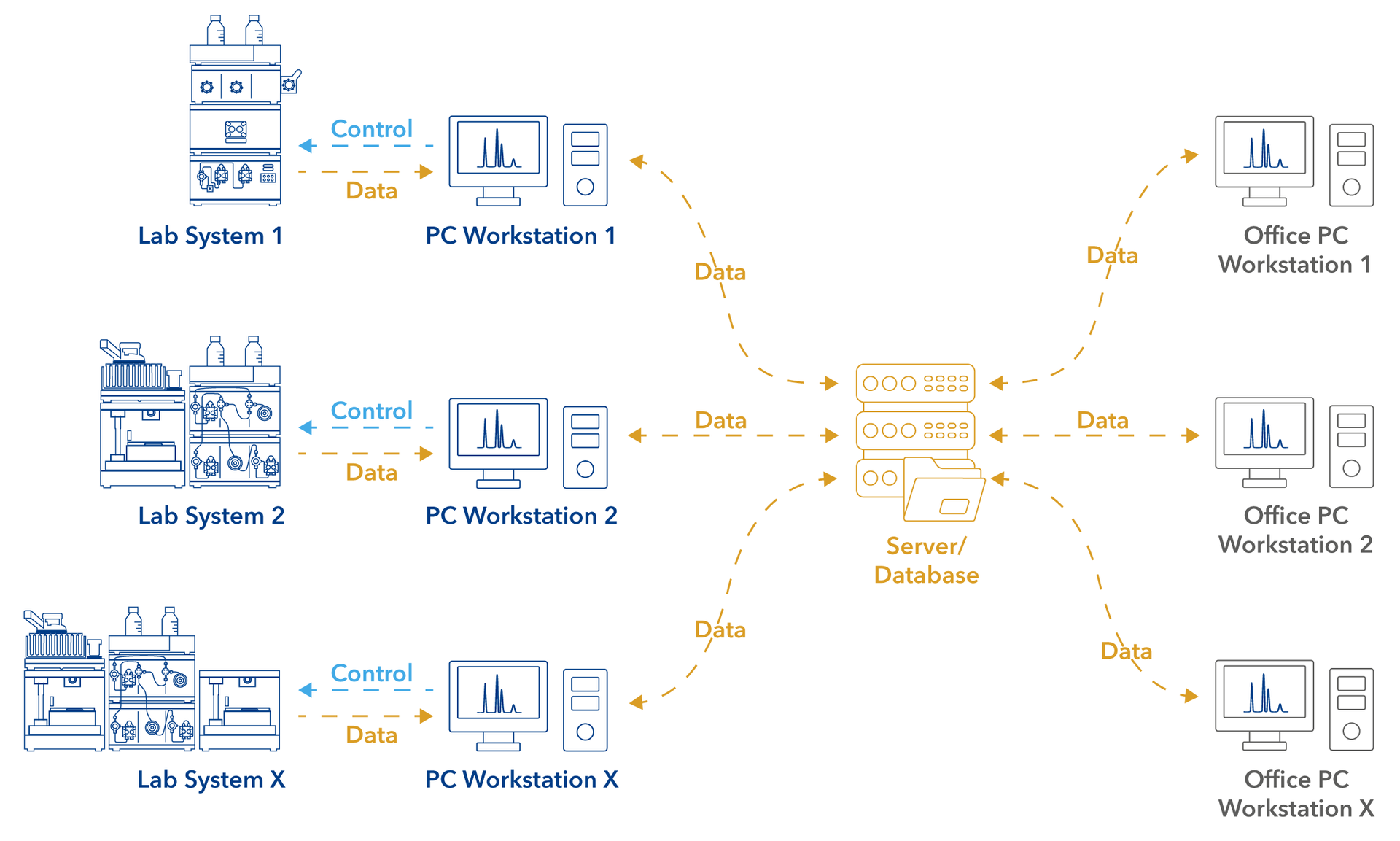
Control every chromatography system from its local PC workstation while all results flow into one central server and database — ready to access from any office workstation.
Sign up here to get all of our latest Software news.
Thanks for registering!
PurityChrom® 6 – it's not just a new version of LC control software but a new era for purification.

![]()
Flexible software meets flexible hardware
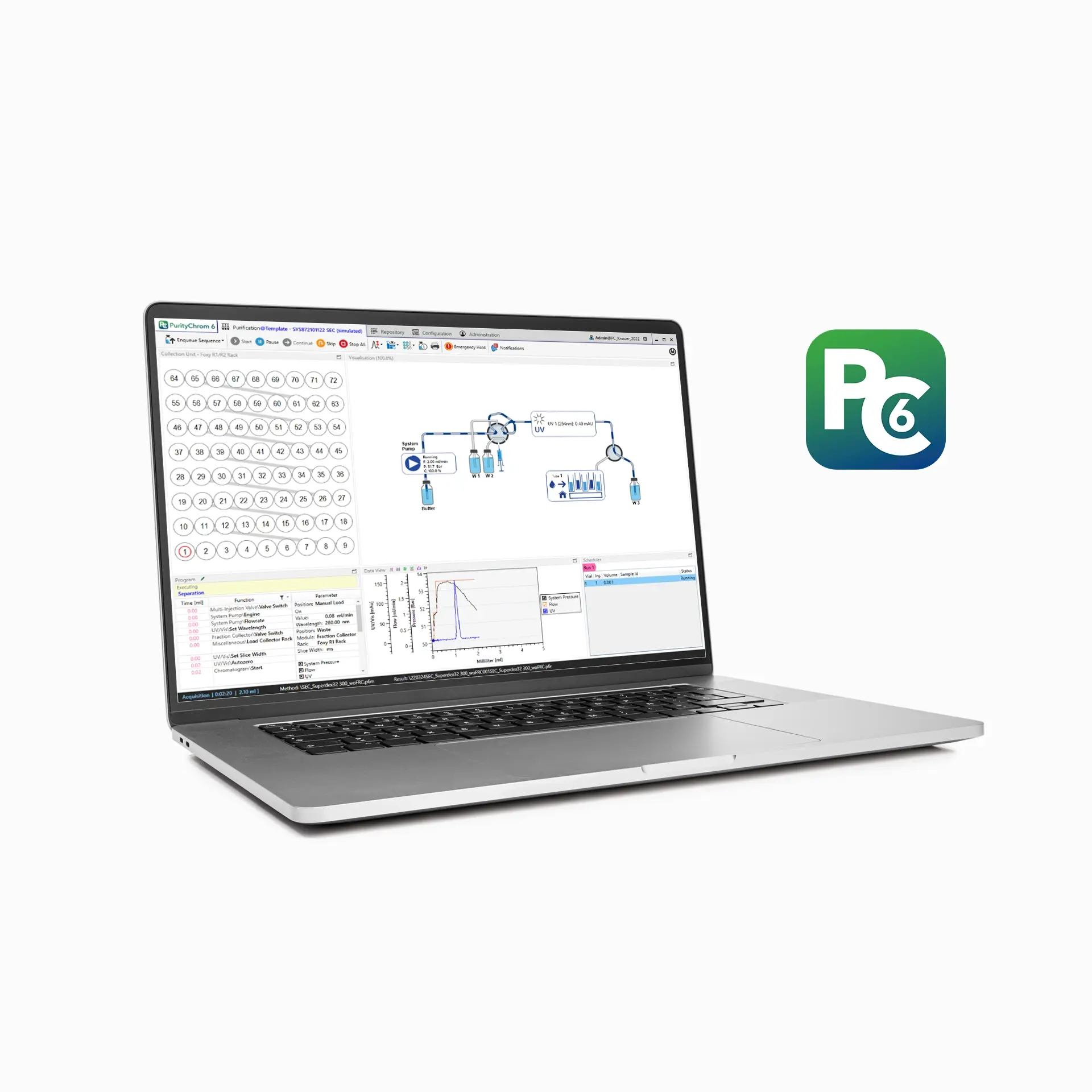
The new version 6 of PurityChrom is as flexible as the KNAUER hardware. Multiple configurations can be created and managed, so that changes in the hardware (e.g., rededication of an inlet valve to an outlet valve) can be transferred to the software in minutes.
Method writing with just a couple of clicks
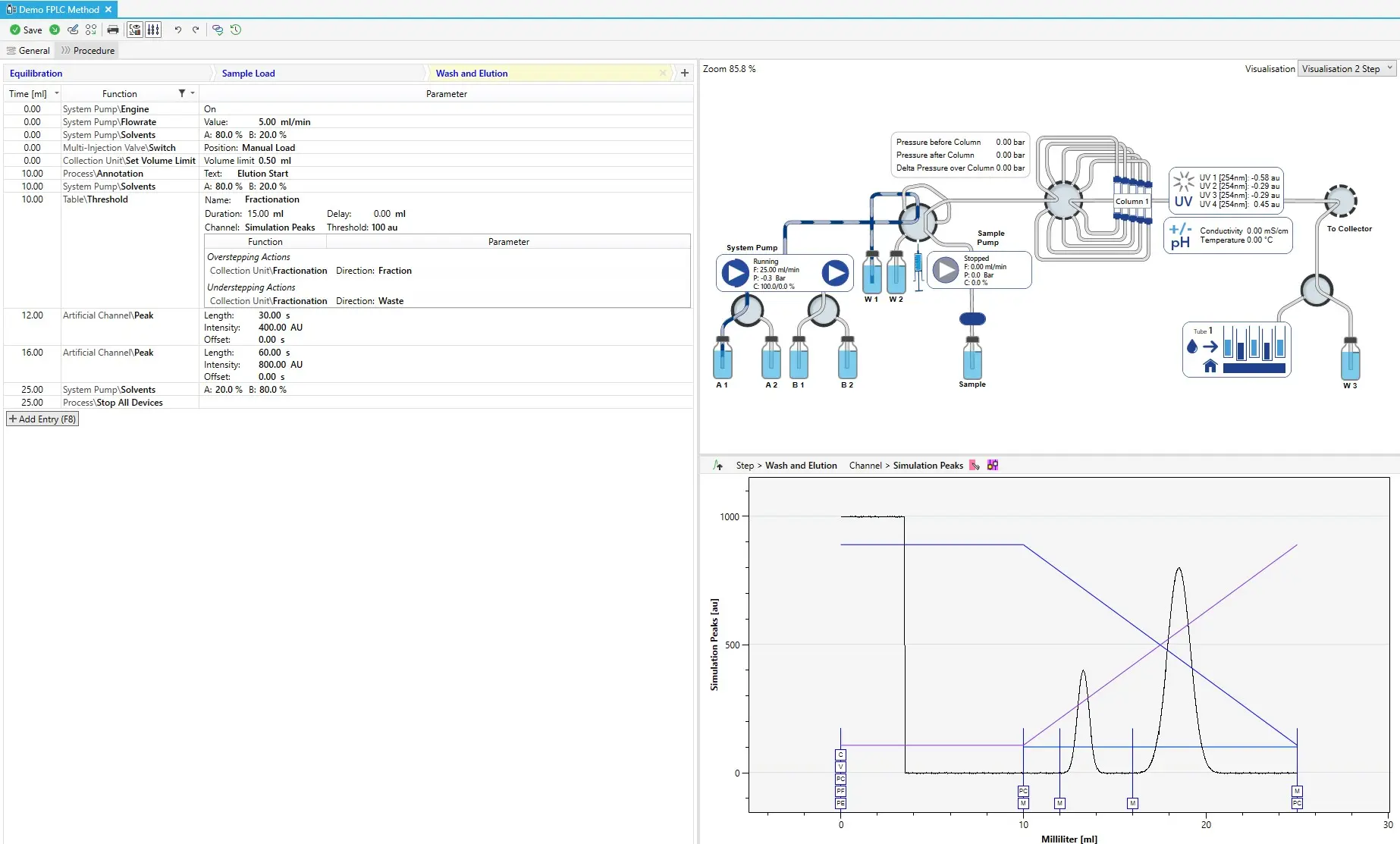
The animated visualisation is not only the center piece for manual operation, but can also be used to write complex purification methods with just a few clicks. A comparison of the written method with previously recorded chromatograms facilitates the optimization of methods. Furthermore, methods can be subdivided into individual steps and particularly frequently used steps can be easily transferred to new methods as "macros".
Take control of your purification team
Using the advanced user administration, roles can be defined and assigned to individual users. The configured user administration can be saved and managed locally or via an own server to synchronize the user administration on all computers in your team.
Intelligent fraction collection
Fraction collection is the key to the success of a purification and therefore also to an efficient purification software. PurityChrom 6 is able to reflect any fractionation situation, including operating a combination of valves and collectors on different peak situations. Furthermore, different fractionation situations ("Collection Units") can be configured, so that only the relevant fractionation type has to be selected in a method to enable correct working of fraction valves or fraction collector.
Intuitive data analysis
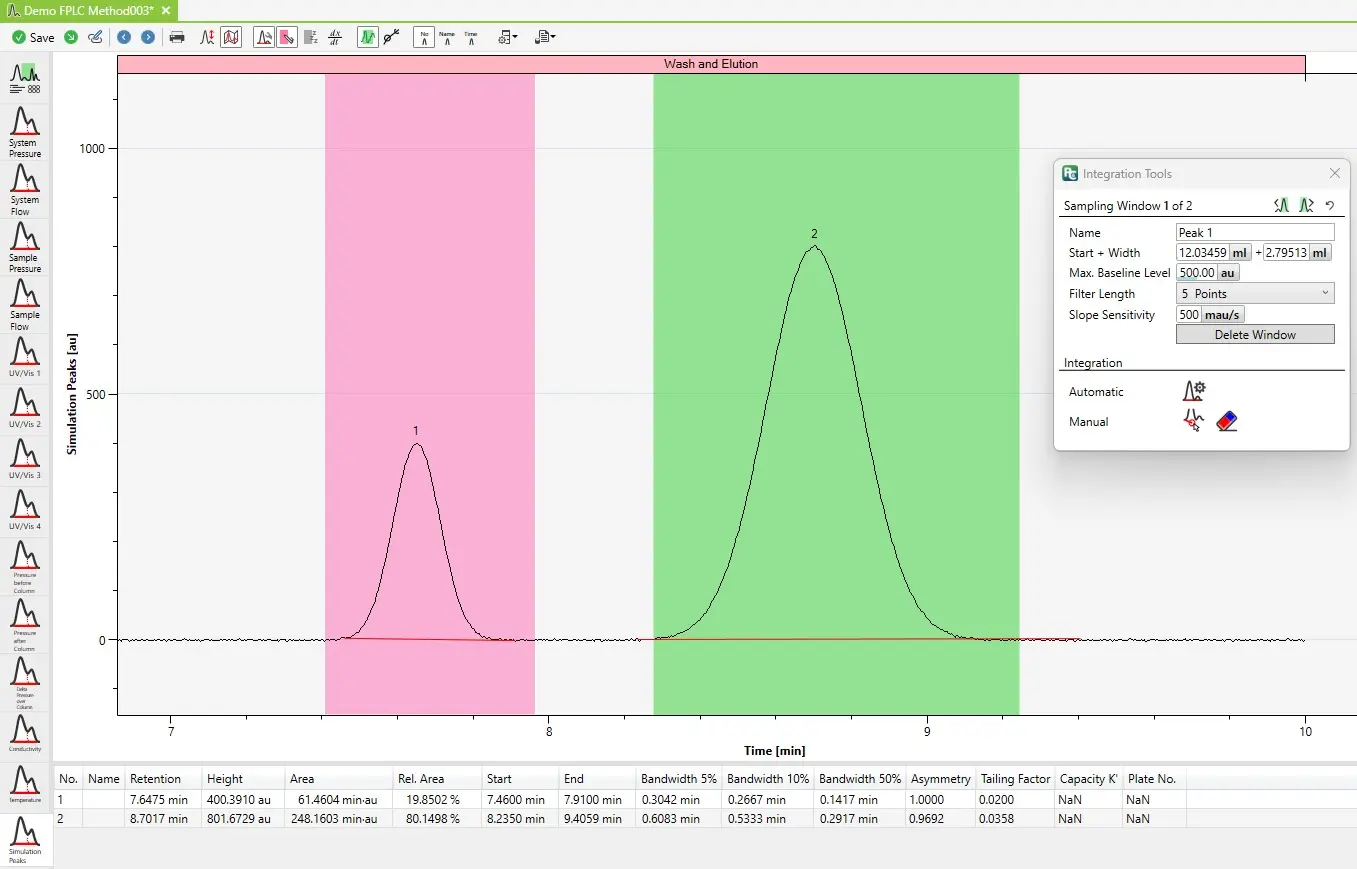
Analyze your data easily in PurityChrom 6 by automatic peak integration or compare several recorded chromatograms with each other. You can easily copy and paste your integration results into a table analysis program. Furthermore, you can export your data as CSV or PDF. Design and content of the PDF report can be freely configured.
Please let us know how we can help.
To evaluate if PurityChrom® 6 holds up to your expectations, you can download the free PurityChrom® 6 demo version. Perfect for those who'd like to try before they buy. This download link always leads to the latest software version and can also be used offline for method writing and data analysis.
Furthermore, together with your license the demo/offline version of PurityChrom® 6 becomes a full version making fast updates to the latest version a breeze.
If the
administrator account of PurityChrom 6 is locked because of too many wrong
login attempts, the system administrator can run the application PrepConConfiguration.exe (saved
under C:\ProgramFiles\PurityChrom6). In the tab “Local database Setup”, the
option “Create Restore-Access-Administrator” has to be chosen. Then close the
setup via the button “Configure”. The setup will create a new administrator
account with the user name “RestoreAdmin“ and the password “0000“. This user
can be used to get access to the user administration and reset the password of
the system administrator.
The path C:\ProgramData\PurityChrom6 is recommended and used per default as a working directory. Therefore, system configurations should be saved there. However, this path is per default not visible under Windows. To see the folder ProgramData in the data explorer, the option “hidden items” have to be activated in the tab ”View”.
Run the application PrepConConfiguration.exe that is saved under the installation directory (per default C:\Program Files\PurityChrom6). This opens the installation setup. In the step „authentication“, the login mode „user name and password“ has to be chosen to activate the user administration. The user can choose between the connection modes SQLite, MySQL and MongoDB to save the user administration database locally on the computer or a server, respectively.
In the next step of the setup, the location of the local database (in case of SQLite option) or the server connection settings has to be defined.
Then, close the setup via the „Configure“ button. The default account settings (user: admin, password: 0000) will be shown in the report window of the setup. After the first login with this initial administrator account, the user is forced to create a new password.
PurityChrom 6 is the new generation of Knauer´s preparative software PurityChrom, which you will easily recognize at first glance. The whole software was developed further so that an upgrade to PurityChrom 6 will offer you new beneficial features for your purification tasks as the following ones:
To upgrade your existing PurityChrom 5 system to PurityChrom 6, article A2687 or in case of required software qualification A2689 has to be ordered. Your PurityChrom 5 dongle will be also valid for PurityChrom 6, thus please state your existing dongle serial number in your order.
The old software files cannot be transferred automatically to the new software. Therefore, we offer to configure your existing system in the new software. This service is included in A2687 and A2689. You only have to deliver the following PurityChrom 5 files of your existing system to your local sales contact:
Please note, that the user administration cannot be transferred from PurityChrom 5 to PurityChrom 6.
Introduction - A short overview of the software: https://youtu.be/FqnOngsD5E0?feature=shared
Installation - A guide through the installation wizard: https://youtu.be/ejkj-LnJtl8?feature=shared
Installation offline - How to use your PC6 demo/offline license with template configurations and archives: https://youtu.be/JSWe7tkVnX0?feature=shared
Purification - How to control your system: https://youtu.be/3N9GJZvL2Mc?feature=shared
Repository - How to manage your data: https://youtu.be/fgdo9OU_43Y?feature=shared
Configuration - How to setup your system inside the software: https://youtu.be/NXC9-tFa6ZE?feature=shared
User administration - How to set up and manage user accounts and the audit trail: https://youtu.be/WC-8cqVOGro?feature=shared
Easy Method - How to write methods in PC6: https://youtu.be/y93FTZg-jUo?feature=shared
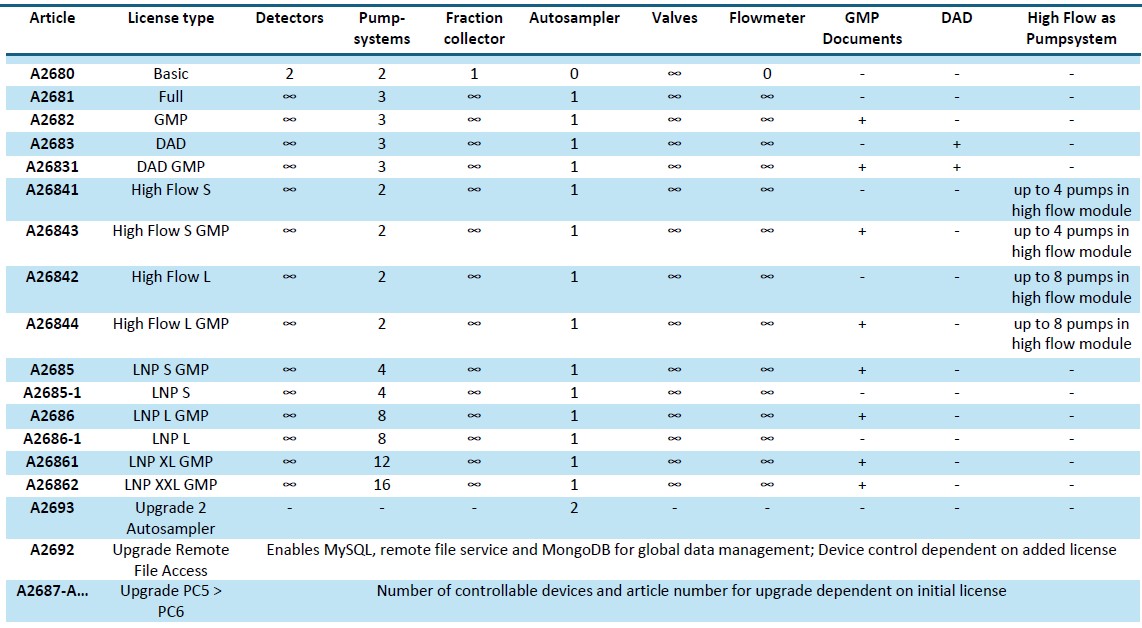
The PurityChrom® 6 basic license allow easy control of HPLC/FPLC systems depending on the number of devices used. Please refer to the articles A2680, A2681, A2683 in the license summary.
The high flow option available in PurityChrom® 6 allows the flowrate combination of several pumps in an easy module. This allows the usage of flowrate above with less restriction through the pump hardware without sacrificing pressure stability by using pump heads for higher flowrates. For available high flow licenses please refer to the articles A26841, A26842, A26843 and A26844 listed in the license summary.
PurityChrom® 6 allows easy control of our LNP formulation systems. The LNP license of choice depends on the size of your LNP system. Please refer to the articles A2685 and A2686 in the license summary.
PurityChrom® 6 is the successor of PurityChrom®5 bringing a lot more features and an updated intuitive user interface. If you choose to upgrade your PC5 to PC6 while retaining your configuration please refer to the articles A2687 and A2689 listed in the license summary.
PurityChrom® 6 is compliant with 21 CFR part 11 and GAMP 5. Our GMP licenses come with all certificates and documentation required for operation qualification in the GMP enviroment. This documentation is availabe for all our licenses. Please refer to the articles A2682, A26831, A26843, A26844, A2685, A2686 and A2689 in the license summary.
The choice of PurityChrom® 6 licenses depends on the desired devices and features. The table below gives an overview which license type supports which device and feature combination is supported by which software article. For most licenses additional GMP documentation is available.
If the administrator account of PurityChrom 6 is locked because of too many wrong login attempts, the system administrator can run the application PrepConConfiguration.exe (saved under C:\ProgramFiles\PurityChrom6). In the tab “Local database Setup”, the option “Create Restore-Access-Administrator” has to be chosen. Then close the setup via the button “Configure”. The setup will create a new administrator account with the user name “RestoreAdmin“ and the password “0000“. This user can be used to get access to the user administration and reset the password of the system administrator.
The path C:\ProgramData\PurityChrom6 is recommended and used per default as a working directory. Therefore, system configurations should be saved there. However, this path is per default not visible under Windows. To see the folder ProgramData in the data explorer, the option “hidden items” have to be activated in the tab ”View”.
Run the application PrepConConfiguration.exe that is saved under the installation directory (per default C:\Program Files\PurityChrom6). This opens the installation setup. In the step „authentication“, the login mode „user name and password“ has to be chosen to activate the user administration. The user can choose between the connection modes SQLite, MySQL and MongoDB to save the user administration database locally on the computer or a server, respectively.
In the next step of the setup, the location of the local database (in case of SQLite option) or the server connection settings has to be defined.
Then, close the setup via the „Configure“ button. The default account settings (user: admin, password: 0000) will be shown in the report window of the setup. After the first login with this initial administrator account, the user is forced to create a new password.
PurityChrom 6 is the new generation of Knauer´s preparative software PurityChrom, which you will easily recognize at first glance. The whole software was developed further so that an upgrade to PurityChrom 6 will offer you new beneficial features for your purification tasks as the following ones:
- Animated flow path
- Easy method writing via clicks into the system visualization
- Configuration of multiple systems
- User-friendly, modern software interface
- Extended functions of the user administration (detailed permission definition, grouping of users, Windows SID login, …)
- GAMP 5 and 21CFR Part 11 compliance can be supported
- …
To upgrade your existing PurityChrom 5 system to PurityChrom 6, article A2687 or in case of required software qualification A2689 has to be ordered. Your PurityChrom 5 dongle will be also valid for PurityChrom 6, thus please state your existing dongle serial number in your order.
The old software files cannot be transferred automatically to the new software. Therefore, we offer to configure your existing system in the new software. This service is included in A2687 and A2689. You only have to deliver the following PurityChrom 5 files of your existing system to your local sales contact:
- PurityChrom.ini (C:\Windows),
- PurityChrom.cfg and PurityChrom.lic (C:\PurityChrom),
- Visualisation Background (C:\PurityChrom\Visualisation\Visualisation Backgrounds),
- Visualisation File (C:\PurityChrom\Visualisation\Visualisation Files)
Please note, that the user administration cannot be transferred from PurityChrom 5 to PurityChrom 6.
PurityChrom® 6
PurityChrom® 6 is the new generation of Knauer´s purification software. It is designed to replace the original „workhorse“ version 5 of PurityChrom. Additionally, the software is compliant with 21 CFR part 11 and GAMP 5.
PurityChrom® 5 is the older version of PurityChrom. It is only supported up to Windows 10. The download link leads to the latest version released for PurityChrom® 5. It can be used as demo licence, for offline data reviewing and to update an older PurityChrom® 5 version.
Before updating your existing PurityChrom® 5, please consider the option of upgrading to PurityChrom® 6 to benefit from modern software features.
DOWNLOAD DEMO
1. Methods are called “Time Control Files”.
2. You have the possibility to stop your pumps if you pause your run with the “Hold” button. Therefore check “Stop Pumps at Time Control Hold” in “Options”.
3. Start your method at time/volume point 0 with the function “Composition Major Pump” or “Composition Minor Pump” and with the Function “Flowrate”.
4. If you are using both pumps during the run, choose the composition and flow rate for both pumps at time point 0. You can choose a flowrate of 0 ml/min for the pump you want to start later.
5. Choose the default position of all your used valves at time point 0
6. Choose your wavelength (function “Wavelength”) and your required channels with the function “Start Chromatogram” from time point 0.02 (not 0.0).
7. Don’t forget to program an autozero.
8. To program a gradient, you need to include all the angles of this gradient as compositions. A linear gradient will be calculated between two different compositions at two different time points. Program a small time difference between the compositions to create a step in your gradient. Using a P2.1L the smallest time difference should be 0.06 minutes.
9. To start fractionation using a fraction collector, change the position of your fraction collector valve from “Waste” to “Fraction”. The function “Collector” enables you to move the collector arm to the wished position (“Step”: The arm will perform a step to the next position). Don’t program the function “Collector” at time point 0. To set a volume use the function “Fraction Limiter”. The current position of the fraction collector arm will be remembered until the program is switched off and on again.
10. To start fractionation using a fraction valve, change the position of your fraction valve from “Waste” to “Fraction”. You can choose a distinct position or the command “Next Step” to go automatically to the next position. To set a volume use the function “Fraction Limit”. The current position of the fraction valve will not be remembered by the software.
11. Program the function “Stop All” at the end of your method. The function “Stop Chromatogram” is only needed to if you want to restart your method automatically (function “Restart Time Control File”), if you want to link another method to your method (function “Load new File”) or if you are using your method in a sequence table.
PurityChrom gives you the possibility to fractionate peaks via thresholds. This is an optimal fractionation method for well baseline separated and defined peaks. A threshold is set at a specific UV Level as indicated in the example by the blue line. If a signal is overstepping this value, fractionation will be automatically started. If the signal falls below the threshold, fractionation will be stopped, and the valve will switch back to waste position. Both levels can also differ. Be aware that if a peak also consists of a shoulder, which is above the threshold, this shoulder will be collected in the same fraction.
You can also combine the limiter with a threshold. Every fraction, that is recognized by the threshold settings, will be divided into smaller sub-fractions by the limiter function and thus, fractions will not be bigger than the defined limiter value. If you adjust the limiter volume according to your working flowrate and regular fraction sizes, you will minimize contaminations by peak shoulders.
The fractionation via threshold can be defined in a method (time control file) using the threshold tab. Here you can specify at which start and end point the threshold function should be active and which level of signal is triggering the threshold actions. It is important to define the actions that should be carried out upon exceeding or undershooting the signal. This you can do by clicking on the red dots indicated in the screenshots. After defining all parameters for the threshold function, don´t forget to insert them into your time control file by using the button “insert”.
If you want to have different UV values for start and end point of your fraction collection, simply add two thresholds with different UV signal intensities and then define for one only the “Over Event actions” and for the other only the “Under Event actions”. When you would like to combine the limiter and the threshold, simply add the “fraction limiter” command to your method.
The error message "Please wait until UV Detector is ready" indicates that the lamp of the UV detector is off and thus, not ready for analysis. If you don´t want to receive this message, simply deactivate the checking of lamp status in the ini file. For that, open the file "PurityChrom.ini", which you will find under C:\Windows. In this file, please change under [Detector] the command "CheckLampStatus=0". Now you should be able to open methods, although the UV lamp is not ready for running this method.
In PurityChrom a user-defined channel can be created, which will be calculated based on the chosen data channels.
Settings for a user-defined channel have to be done:
1. In the setup menu of PurityChrom: Open the setup menu. Go to the tab „user-defined channel“ and choose the data channels and the mathematical operation, which should be used for the calculation of the new channel.
2. In the chromatogram window: Open the chromatogram window and activate the user-defined channel by clicking on the „U“ button. Open now the setup menu of the chromatogram window and rename the channel and its dimension.
Using external pressure sensors (one before and one after the column), the user-defined channel can display for example the pressure difference. Or monitor the purity of your sample by defining the user-defined channel as a ratio of UV signals.
You can fractionate peaks using the automated peak sampling in PurityChrom. In this mode the peaks of your run are analyzed by several factors like slope and baseline and a customizable fractionation is carried out while the peak situation (e.g. peak start, peak valley, peak maximum, peak shoulder and peak end) is determined
In the time control file, you can find the tab “sampling”. Here one defines the time range in which the automatic fractionation should be active. Also, you can define which data source is used for the peak sampling and how many data points are averaged over (“filter factor”). The value for “slope sensitivity” is the most important point, because here a new peak can be identified by its steepness. The “maximum baseline level” is the value, which determines whether a peak valley or a peak end is identified. You must put in a value higher than the usual baseline of the chromatogram you want to fractionate. The settings under “maximum fractions” and “excessive fractions to” are used with specialized valves but do not apply to KNAUER hardware.
To define which actions are taken at which peak situation you click on the dot of the peak situation and then define the actions, that should be carried out by the software. To get a rough idea of the values “maximum baseline level”, “filter factor” and “slope sensitivity”, which are compatible with the peak situation of your chromatogram you can use the integration function in PurityChrom.
Fractionation via a limiter is often used in standard FPLC runs. It means, that upon setting the fraction collector into fractionation mode, it will collect the same size fractions as long as it is in this mode. An example of the fractionation behavior you can see pictured. You see here that the same volume is collected for each fraction unless you interfere with the fractionation manually. This is convenient especially for runs with less defined peak shapes, low UV intensities and to make sure, that no material is lost during the run. However, the possibility of contaminating the product of interest is likely because no active surveillance of UV signal is involved in this fractionation type, as you can see in the exemplary run for fraction 8.
To implement the limiter in a method, you add the command “Fraction Limiter” and define the volume which is repeatedly collected during the run. In this example, the tube is changed after a volume of 1 ml is collected. The fractionation is started by switching the fraction collector valve into the fractionation position at the point of your choice.
The variables functions allow you to freely adjust certain parameters in a method flexibly upon starting the method or when creating sequences. Hence you can run different applications with just one method or screen quickly the most important method parameters.
Variables have to be defined in the Time Control File in the tab „Variables“. Here you should decide which parameters you would like to hold flexible and give them a short name as well as a default value. Don´t forget to push the button „insert“ to save your settings.
To add a variable to your method, go to the tab „Functions“ in the Time Control File and choose the function related to your variable. With a long-term left mouse click in the parameter field, a shortcut will be opened with the short name of your defined variable. After clicking on the short name and inserting the function in your time control file, the variable will be shown in the timetable of the method.
If you start a method including variables as a single run, a window will be opened before the method is executed, in which you can change the values for your defined variables.
Suppose you add a method including variables in a sequence table. In that case, new columns will be automatically added to the sequence table, in which you can change the settings for your defined variables. This option enables you a quick screening of method parameters and thus a fast optimization of your method.
The following parameters could be used as variables in PurityChrom:
Solvent Composition Major / Minor
Flowrate Major / Minor
Wavelength (UVD/DAD)
Mass (MS)
Channel No.
Threshold value
Valve position
Limiter value
Collector position
Temperature
Function Time
Time Shift
Also check our tutorials about variables in PurityChrom 5!
If the administrator account of PurityChrom 5 is locked because of too many wrong login attempts, deliver the following information to support@knauer.net:
The KNAUER customer support will send you a number that can be used as user name and password to enter PurityChrom. However, this account is only valid for one day only on the defined date. Please make sure, that time and date are correctly set on your system computer.
How to Perform Peak Fractionation in CDS Software Puritychrom® 5.9
Defining variable factors for chromatography in CDS software PurityChrom® 5.9
Puritychrom® Bio Software Tutorial: Starting the Software
Puritychrom® Bio Software Tutorial: Safety Feature - Waste Management
Puritychrom® Bio Software Tutorial: Safety Feature - Solvent Supply
Puritychrom® Bio Software Tutorial: Choosing your Fraction Rack
Puritychrom® Bio Software Tutorial: Analyzing your Data - The Integration Window
Puritychrom® Bio Software Tutorial: Analyzing your Data - The Compare Window
Puritychrom® Bio Software Tutorial: Analyzing your Data - The Reconstruction Window
Puritychrom® Bio Software Tutorial: Starting a Run - The Analysis Window
Puritychrom® Bio Software Tutorial: Writing a Method
Puritychrom® Bio Software Tutorial: The System Visualization
PurityChrom® MCC is optimized to be used with simulated moving bed chromatography systems (SMB).The SMB parameter wizard helps you to generate new SMB methods and optimize your parameters while the process is running. With the integrated starting point calculator, you can easily generate your SMB method with the adsorption isotherms of your substances.
To evaluate if PurityChrom® MCC Plus holds up to your expectations, you can download the free PurityChrom® MCC Plus demo version. Perfect for those who'd like to try before they buy.
PurityChrom® 5 & PurityChrom® MCC
PurityChrom® 5 is the older version of our software for purification tasks. The special licence MCC supports the control of a SMB system.
Any questions about our products, solutions and services?
+49 30 809727-111
Monday to Friday / 7 am–5 pm CET
sales@knauer.net
24/7
Would you like an offer for one of our products?